Webflow Salesforce Integration: Enterprise Guide (2026)

Let's Build Your Webflow Website!
Partner with experts who understand your vision. Let’s create a converting user experience and build your website for future growth.
Webflow Salesforce Integration: The Complete Enterprise Implementation Guide
Webflow Salesforce integration connects your Webflow forms and user interactions to Salesforce CRM. It creates leads and contacts and triggers workflows without manual data entry.
Abstract
Marketing teams invest heavily to bring traffic to Webflow sites, yet the process often fails at the finish line. Leads are placed in email inboxes or CSV files, and someone has to upload them to Salesforce by hand. This delay kills response times and makes accurate attribution impossible. This guide explains how to fix that. It covers the three ways to link these systems, using middleware, webhooks, or custom API builds. As a Webflow Enterprise Partner, Shadow Digital has implemented CRM integrations for B2B companies that process thousands of leads monthly.
Quick-Reference Integration Options
Enterprise teams usually get stuck here: choosing between speed, control, and long-term maintainability. Most teams don’t need custom code, but things change quickly once you introduce custom Salesforce objects or complex routing rules.
Quick Recommendation
Use Zapier or Make. They work well, and they are cheap and fast. Start there, and only move to a custom API if you have massive data volume or messy routing rules. If you use custom objects, build your own connection with Webflow integration services.
Why Webflow + Salesforce Integration Matters for B2B
Marketing and sales use different tools, and that is fine. The problem starts when those tools aren’t connected.
When someone fills out a form on your Webflow site, that data often sits in Webflow, in the inbox, or in a spreadsheet. Sales happen in Salesforce. So this gap between the two costs time, money, and deals. This section explains why that gap matters and how to fix it.
The Cost of Disconnected Systems
In B2B, the first five minutes after a form fill often decide whether a deal ever happens.
Teams that call leads within minutes consistently outperform those that wait hours, sometimes by an order of magnitude. Every manual step introduces risk, misspelled emails, duplicated leads, or missing fields that Salesforce silently rejects.
Fields get mistyped, records get duplicated, and key details never make it into Salesforce. You lose where the lead came from, what page they viewed, or which form they filled out. Once that context is gone, it does not come back.
Sales reps feel this immediately: they open Salesforce and see a name with no context and no reason to call. Reps spend time fixing records instead of calling leads.
Marketing loses ground too. If campaign data does not flow into Salesforce, you cannot see which efforts lead to revenue. Reporting stops at form fills. ROI becomes a guess.
Once you pass a few hundred leads a month, manual uploads become a daily bottleneck and missed follow-ups become routine.
What Proper Integration Enables
When Webflow and Salesforce are connected, the handoff disappears:
- A form is submitted
- A lead appears in Salesforce seconds later
- No waiting
- No copying
The lead arrives with context: source page, campaign data, precisely what they asked for, while sales knows who they are calling and why.
From there, Salesforce does what it is meant to do:
- Assign the lead
- Send the first email
- Create a task for a rep
All without someone pushing buttons.
The connection can go both ways. Salesforce data can be used on the site to change what someone sees based on who they are or where they are in the funnel.
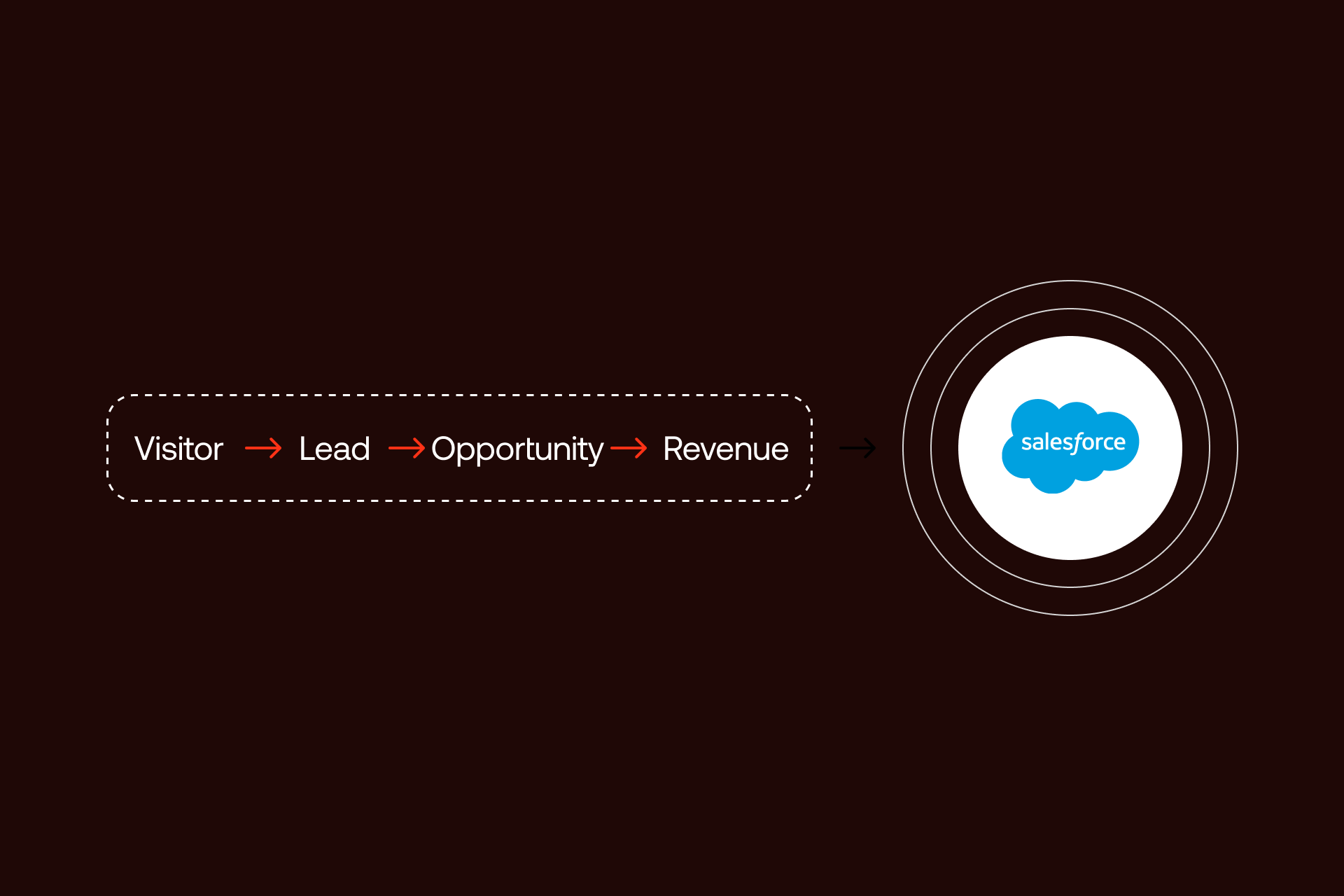
Most importantly, the line stays intact, from the first visit to the closed deal, the data stays connected.
Integration Methods: Choosing Your Approach
Keep it simple — choose a method that fits your data volume and budget.
Method 1: Middleware Platforms (Zapier, Make, Workato)
Middleware is a translator. When a user completes a form on Webflow, the middleware will intercept the data, transform it, and send it to Salesforce.
Zapier is usually the fastest option to set up, especially for straightforward lead capture. Make provides you with greater control over the flow of data. Workato is aimed at large businesses with huge budgets and strict security policies.
The main benefit is speed. Within a few hours, you can have a working connection without writing code. Errors are also taken care of by these tools. There is a monthly fee that increases with increased leads. For most teams, middleware
Method 2: Webflow Webhooks + Cloud Functions
Method 2 skips the middleman. Your site transmits a data packet to a tiny fragment of code that you possess. This is used when you have many leads or when you need to score them before they get to your CRM.
It is less expensive when it comes to large volumes since you are not charged a fee on each lead. It will require a Webflow development experts monitor it. If your function errors and no alerts are in place, form submissions can fail silently, and no one knows until sales notices missing leads.
Method 3: Custom API Integration
This approach is the most labor-intensive — you build a direct connection to the Salesforce API.
Remember that though it is powerful and secure, it is very time consuming to construct. You require a Webflow integration expert familiar with the Salesforce API.
Method 4: Salesforce Web-to-Lead (Basic Option)
It can also appear unattractive and difficult to dress up, so this one might not be the most suitable in a serious business. It can also look dated and is hard to style, so it's not ideal for professional B2B sites.
Choosing the Right Method: Decision Framework
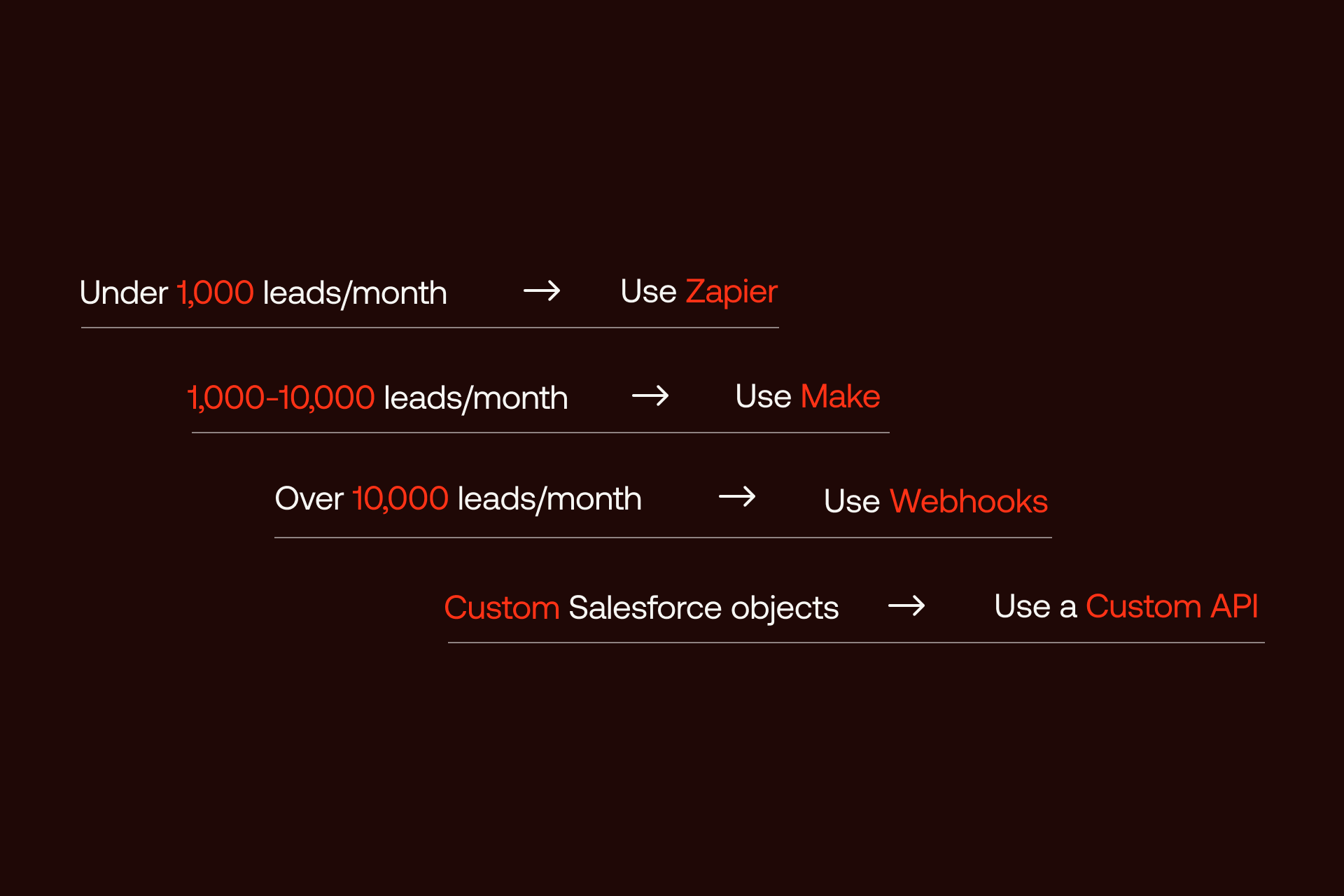
Use this logic to choose your method:
- Under 1,000 leads/month: Use Zapier.
- 1,000-10,000 leads/month + complex rules: Use Make.
- Over 10,000 leads/month: Use Webhooks.
- Custom Salesforce objects: Use a Custom API.
- No budget: Use Web-to-Lead at your own risk.
Webflow Salesforce Integration Implementation Guide
Be exact here - when your data is a mess in Webflow, it will be a mess in Salesforce. Technical connection is managed by middleware such as Zapier or Make.
Prerequisites & Preparation
Start by confirming your Salesforce license supports API access and checking for any existing integrations.
Next, use a CMS or Business plan on Webflow and label your form fields. When you call a field Field 1, you will not understand what data will be stored there in the future. Label it with the Last Name or Company so that it can be easily followed.
Checklist:
- Salesforce: Test your API connection, generate a special user to use in this connection, and map your Lead objects.
- Webflow: Name all the form fields and select a plan that suits your traffic.
Middleware Implementation: Zapier Case.
The most widespread tool is Zapier which works in a straight line.
- Trigger: Select the initial point as New Form Submission in Webflow.
- Connect: Choose the form you wish to use and connect your Webflow site.
- Action: Select Salesforce and select "Create Lead."
- Map Fields: This is the most significant section. Link the Webflow Email box with Salesforce Email box.
- Test: Pass a bogus lead through your site. Check Salesforce to determine whether the info has been received.
Authentication & Security
To configure security use OAuth 2.0. It allows your tools to be connected without exposing your login password. When you create a custom connection, create a Salesforce Connected App to handle these rules.
Just provide the integration user with access to the fields it requires. Do not grant it access to your whole database.
- Connect everything with OAuth.
- Create a different user account exclusively to use in the integration.
- Monitor your data limits to ensure the connection does not break.
Form Configuration and Field Mapping.
These track details like which ad someone clicked without making the form look longer.
Match your data types. If Salesforce expects a number, don't send text. When you have a dropdown list, the words should be the same. If Webflow says 'SMB' and Salesforce expects 'Small Business,' the lead will fail.
Mapping and Synchronization of Data
Transferring information is not the whole task. When the mapping is not correct, your Salesforce account will be messy. Broken records will irritate your sales reps.
Mapping Webflow Forms to Salesforce Objects
Most companies send data to the Lead object. But you need to decide: should it go to Leads or Contacts?
You need to map all the fields that Salesforce needs. In case Salesforce requires a Company name, but your form does not require it, the connection will not work. Your dropdown lists should be identical. When your location is USA and Salesforce is United States, the data will be rejected. Document these rules so you have a single source of truth.
Data Quality and Data validation.
Stop bad data at the form. Use Webflow's form settings to make sure that emails are typed correctly. Make sure that you do not leave a required box. The easiest way to keep data clean is to catch errors before the form is submitted.
Formatting can be fixed in your middleware, e.g. phone numbers can be cleaned up or capital letters fixed. You need to have a duplicate rule, as well. Decide whether the system is to modify an existing record or make a new one in case a match is made. Finally, set up an alert. When the system fails, you should be notified immediately so you can fix it before losing leads.
Validation Checklist:
- Does your form cover all the fields Salesforce requires?
- Do the dropdowns of the two tools share the same options?
- Is there a duplicate rule?
- Will you be informed when the system goes dead?
Batch vs. Real-Time Synchronization.
When a lead clicks submit, they should appear in Salesforce within seconds. This would enable your team to make calls to them even when they are still thinking about your business. Speed wins deals.
Batch sync waits until the end of the day to send leads, and that's too slow. It will save you some API limits, but will hurt your sales. Only use batch sync if you have 50,000+ leads per month and are hitting API limits.
Automation & Process Improvement
The tools are just the tip of the iceberg. The tools are just the start. The goal is to make sure no lead falls through the cracks.
Salesforce Lead Automation Processes.
Once the data is sent to Salesforce, then it is supposed to be processed by the system. Send leads to the relevant individual based on rules based on their location or size of their company. This eliminates manual lead assignment by managers.
Set up an email to send automatically when a lead is created. This turns a simple form into a robust sales process.
Marketing Automation Integration
If you use Pardot or Marketing Cloud, this connection is crucial. You can add leads to email tracks based on what they downloaded. By linking leads to a Salesforce Campaign, you see which ads bring in money. You can stop guessing and spend your budget on what works.
Advanced Automation Scenarios
One form can do many things. It can create a lead, add them to a campaign, and message a Slack channel all at once. You can also use services like Clearbit to fill in missing details, like a person's job title, without asking the user. Some teams even use Salesforce data to change the Webflow site for returning visitors. This makes the site feel personal to that specific lead.
Customization & Scalability
Simple forms are often not enough. Your site needs to handle complex tasks without breaking when traffic gets heavy, especially during Webflow migration or platform upgrades.
Custom Webflow Form Configurations
Standard forms are too simple for big deals. Use forms that change based on what a user types. If they say they work at a large company, show them more questions about their industry.
Use hidden fields to track which ads or links brought the user to your site. This data goes to Salesforce without the user seeing it. For long forms, break them into steps. This makes them easier to finish. Just make sure every step sends the data to your connection correctly.
Scaling for Growth
A system that works for 100 leads will fail at 10,000. Salesforce limits how much data it takes at once. Watch your speed. If the data moves slowly, you might hit those limits. If you have sites in different countries, you must follow local laws about where you store that info.
Troubleshooting & Best Practices
Every integration can break; that’s why you need a system that tells you there is a problem before you lose money and opportunities.
Common Integration Issues (and Solutions)
Most breaks happen because of login errors, data mismatches or simply because you didn’t have Webflow maintenance support. If the connection stops, check if your account permissions changed.
Mapping is the other big problem. If Salesforce requires a field but your site does not ask for it, the lead will fail. If a user types something that Salesforce does not recognize, the CRM will reject the whole record.
Best Practices for Enterprise Integration
Be organized. Write down how every field and workflow works. Never change your site or Salesforce without testing in a safe spot first.
Have a backup plan. If your tools go down, export your leads to a file and upload them to Salesforce by hand. Do not let leads get cold while you fix a technical bug.
Compliance & Data Security
Move data legally. Follow rules like GDPR. Make sure users can click a box to give consent. Encrypt your data while it moves. Check your logs every three months to see who has access to your info. Keep a record of every transfer so you can see if something goes wrong.
- Use consent boxes on every form.
- Encrypt all data while it moves.
- Keep logs for all successful and failed transfers.
Webflow-Salesforce Integration Readiness Assessment
Before you build, you need to know which path matches your technical and business reality. Use this scoring system to determine the right integration method for your organization.
1. Volume & Scale (Monthly form submissions)
- < 500: 5 pts
- 500–2,000: 10 pts
- 2,000–10,000: 15 pts
- 10,000+: 25 pts
2. Data Complexity (Salesforce configuration)
- Standard objects only: 5 pts
- Some custom fields: 10 pts
- Custom objects and complex routing: 20 pts
- Multiple record types and complex validation: 25 pts
3. Automation Requirements (Workflow needs)
- Basic lead creation only: 5 pts
- Lead assignment and auto-responses: 10 pts
- Complex routing and multi-object creation: 15 pts
- Deep Marketing Automation integration: 20 pts
4. Technical Resources (Available expertise)
- No technical staff: 5 pts
- Basic technical capability: 10 pts
- Full development team available: 15 pts
5. Compliance Requirements (Regulatory environment)
- Standard business: 5 pts
- Some compliance needs: 10 pts
- Regulated industry (Finance, Healthcare): 15 pts
Scoring Interpretation
- 25-45 points: Middleware (Zapier/Make). Your needs are standard. Start here and scale later.
- 46-70 points: Webhooks + Cloud Functions. You need custom logic that middleware cannot handle easily.
- 71-85 points: Custom API Integration. You have specific enterprise requirements that demand a direct connection.
- 86+ points: Custom API + Professional Implementation. Your environment is complex. You need experts to ensure data integrity and security.
Ready for a professional audit? Schedule a consultation to review your score with our integration architects.
Conclusion: Building Your Integration Strategy
Connecting Webflow to Salesforce is more than moving text. It turns your site into a tool that finds and handles leads instantly.
Choose your method based on your size. If you are small, do not waste money on custom code. If you are large, do not use a simple tool that will break or fail security checks.
The connection is just the start. The real win comes from what happens next. When data moves fast and stays accurate, you close more deals. Fast follow-up and accurate data give sales a real chance to close while interest is still high.
Building these systems for large companies takes work. You have to plan for growth and keep data safe. Shadow Digital builds these connections for teams that handle thousands of leads every month. We make the technical parts work so your sales team can focus on closing.
We can help you connect Webflow to Salesforce.
Schedule a call with Shadow Digital to discuss your requirements.
FAQ: Frequently Asked Questions
How do I connect Webflow forms to Salesforce?
You need a bridge to move data from your site to the Salesforce API. Most people use tools like Zapier or Make. You set a trigger for a "New Form Submission" in the bridge, log in to both accounts, and match your Webflow fields to your Salesforce fields. Once turned on, data moves automatically.
Can Webflow integrate with Salesforce without code?
Yes. Tools like Zapier, Make, and Workato use a visual interface. You log in and drag fields to match them up. You still need to know how your Salesforce data is organized to make sure the fields match, but you do not need to write scripts.
What is the best way to integrate Webflow with Salesforce?
It depends on your lead volume. For most businesses, Zapier or Make is the best balance of cost and speed. If you handle over 10,000 leads a month or have very complex rules, use webhooks and cloud functions. This gives you more control and lowers your costs at high volumes.
Does Webflow have a native Salesforce integration?
No. Webflow does not have a built-in, one-click button for Salesforce. Since Webflow Logic ended in mid-2025, you must use a third-party tool or custom code to link the two systems.
How do I send Webflow form data to Salesforce?
When a visitor clicks submit, Webflow sends a data package. A middleware tool catches this package, cleans it up to meet Salesforce's rules, and pushes it into your CRM. If you build a custom version, you use a webhook to send that data to a server you control, which then talks to Salesforce.
Can I use Zapier to connect Webflow and Salesforce?
Yes, it is the most common method. It handles standard tasks like creating leads or updating contacts. It also has tools to fix formatting, like making sure phone numbers look correct or names are capitalized before they reach Salesforce.
How do I set up webhooks for Webflow Salesforce integration?
Go to your Webflow site settings and find the "Integrations" tab. Create a new webhook and set it to "Form Submission." Give it a URL from your middleware or your own server. Webflow will then send a data packet to that URL every time someone fills out a form.
What Salesforce API permissions are needed?
Use a specific "Integration User" account. This user needs "API Enabled" permissions and access to read and write to Leads or Contacts. Only give this user access to the specific fields it needs to do its job.
Can I map Webflow form fields to custom Salesforce fields?
Yes. You can match any Webflow field to a custom Salesforce field as long as the data types are the same. A text box in Webflow must go to a text field in Salesforce. Make sure the names match exactly or Salesforce will reject the data.
How do I prevent duplicate leads in Salesforce?
You can handle this in your middleware or inside Salesforce. Most tools can "Find or Update" a record. The system looks for an existing email address first; if it finds one, it updates that person instead of creating a new lead. You can also use Salesforce's own duplicate rules to block or merge new entries.
Can Webflow trigger Salesforce workflows automatically?
Yes. Once the data arrives in Salesforce, your internal rules take over. You can set Salesforce to assign the lead to a rep, send a "thank you" email, or create a task for a phone call immediately.
How do I track UTM parameters from Webflow in Salesforce?
Add hidden fields to your Webflow forms for your UTM values. Use a simple script on your site to grab those values from the URL and put them in the hidden fields. When the user submits the form, those details flow into Salesforce along with their name and email.
Is Webflow Salesforce integration secure?
Yes, if you use OAuth 2.0. This uses secure tokens instead of sharing passwords. By using an integration user with limited permissions and sending data over HTTPS, your information stays protected.
How do I scale the integration for high volume?
If you process more than 10,000 leads a month, move away from basic tools. Use webhooks and serverless functions like AWS Lambda. These handle large bursts of traffic better and cost less than paying for every individual task in a middleware tool.