How to Create a Webflow Sitemap (2026 Step-by-Step Guide)


Let's Build Your Webflow Website!
Partner with experts who understand your vision. Let’s create a converting user experience and build your website for future growth.
How to Create a Webflow Sitemap (2026 Step-by-Step Guide)
If you ever wonder how Google finds your website, the answer is a sitemap - a roadmap for your website. In practice, users often skip sitemaps, assuming Google will eventually find their pages through links. This isn’t just a small-site issue, even larger websites sometimes ignore them.
But even if skipping a sitemap isn’t fatal, it can slow down how quickly search engines find your pages, especially if your internal links are weak. Sitemaps keep things clear, list every page and its connections, and help search engines understand your site.
In this guide, we will walk you through on how to create, manage and refine your sitemaps. By the end you will learn how to handle the most of the heavy work and how a few smart weeks can make your website easier for search engines to crawl.
Understanding Webflow Sitemaps

Before we start with actual steps on how to create a site map in Webflow, we need to define what sitemap is and what types of sitemaps exist.
Imagine your website as a city. There you have streets, buildings and alleyways some of them are obvious, some of them hidden. Our Webflow sitemap is like a city map of your website for search engines. It tells Google, Bing and the rest of browsers exactly what’s there.
Sitemaps have two flavors: HTML and XML. HTML site maps are for people and they show all the important links so visitors don’t get lost. XML sitemaps? They are strictly for search engines. They are structured the list of every URL with notes about when it was updated and how important it is.
Even if this may sound confusing, with Webflow sitemaps are painless. You just have to turn on hosting hit publish and it generates your sitemap.xml automatically. If you prefer manual control, you can edit or replace your sitemap to customize update times or language tags.
And if you’re curious, check it by typing:
yourdomain.com/sitemap.xml
Types of Sitemaps in Webflow
For some users site maps may be confusing so will try to break down their definitions and types in plain terms:
- XML for search engines: This is the file crawlers read that reads every URL, last modified date, page importance, all there in a neat list.
- HTML for users: This is a page on your website that works like a table of contents. Visitors see it, click around, find what they need.
- CMS-based dynamic sitemaps: For blogs, products, and multi-language content.
- Sitemap index files for big sites: Huge website? One file links to multiple XML sitemaps so crawlers don’t get lost in the weeds.
- Note: Webflow only auto-generates the XML sitemap. If you want an HTML sitemap (a user-facing list of links), you’ll need to build it yourself.
Why You Need a Sitemap in Webflow
As we said, many users skip sitemaps, and hope for the best. But they aren’t just another box on your technical checklist, even if they don't boost rankings directly. Sitemaps helps search engines discover and index your pages faster and more reliably.
Sitemap SEO perks:
- Ensures all important pages get crawled
- Helps search engines discover new content faster
- Reduces the chance orphan pages slip through
User perks
- Clarifies site structure for visitors
- Makes navigation easier with an HTML sitemap
Webflow automates the basics of sitemap creation, which is fine for most small to mid-size sites. Bigger projects may still need a custom sitemap setup, that’s why one of the essential questions to ask your SEO agency is: how they ensure all your pages are discoverable.
Impact of Having a Sitemap vs. Not Having One
How to Create a Sitemap in Webflow
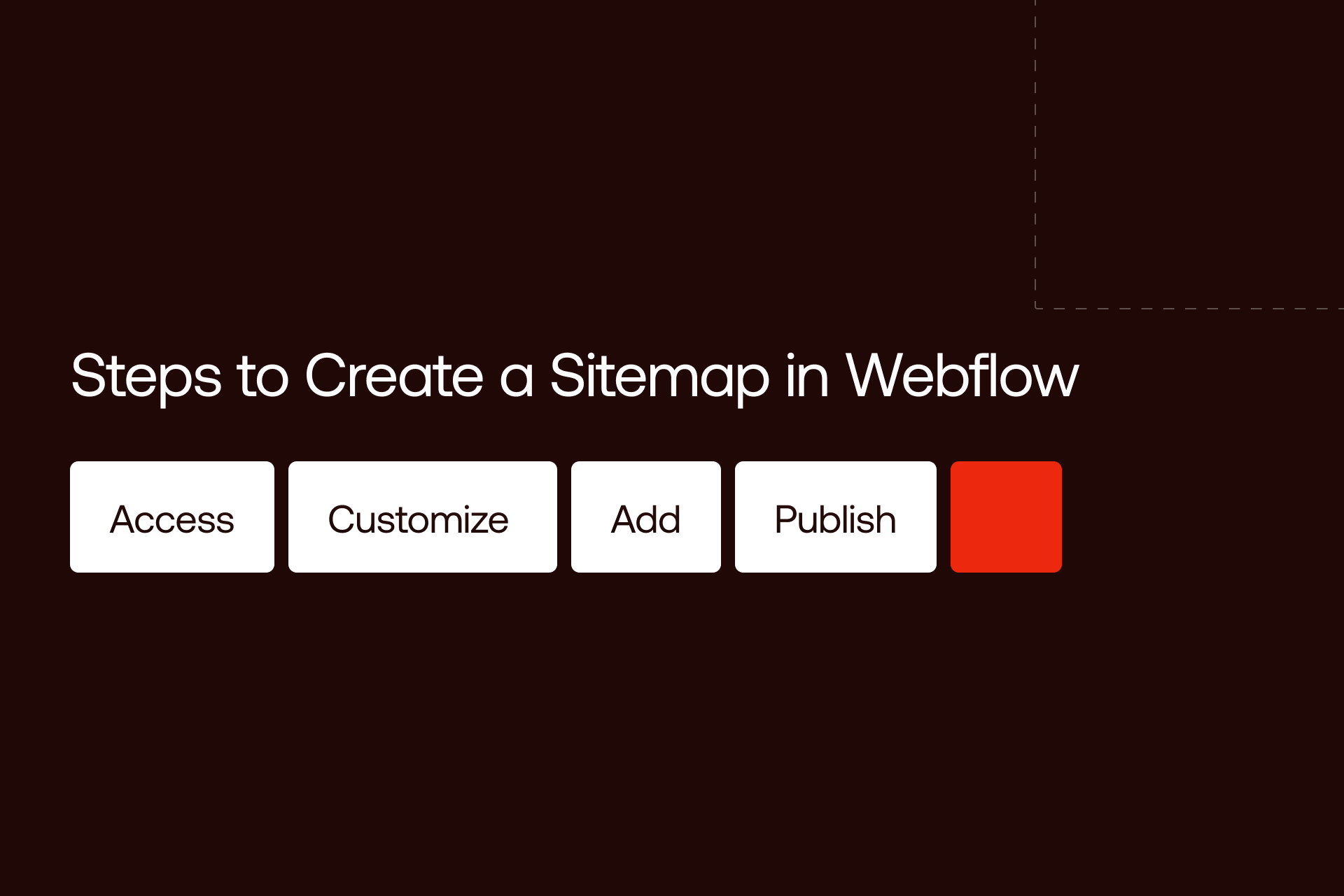
Now let’s see how you can create a sitemap in Webflow:
Step 1: Access Sitemap Settings
Alright, first things first, let’s get into Webflow and open your project’s SEO settings. Head to Project Settings - SEO tab. Right there, you’ll see the Auto-generate Sitemap toggle.
Flip it on, and Webflow automatically generates your XML sitemap every time you publish. That means you don’t have to touch a thing for most sites, Webflow keeps it up to date for you. By default, it includes all public pages, giving search engines a complete view of your site without any extra work.
Step 2: Customize Sitemap Configuration
Sometimes you want more control. Maybe you don’t want “Thank You” or temporary landing pages indexed. Here’s where customization comes in.
In the sitemap settings, you can:
- Hide individual pages from the sitemap by disabling indexing in that page’s SEO settings or by using the “noindex” tag.
- Webflow’s auto-generated sitemap doesn’t support setting page priority or change frequency. You’d need to create a custom sitemap for that.
- Manage hreflang tags, essential for multilingual sites so Google serves the right language or region.
- Handle password-protected pages, these won’t be indexed unless you want them to be.
- Think of this step as giving Webflow’s automatic system some fine-tuning so it aligns perfectly with your SEO strategy.
Step 3: Add CMS Pages to Your Sitemap
If your site has blogs, product listings, or other CMS collections, Webflow does a lot automatically. It includes all published CMS items in your sitemap, but you need to make sure:
- Every CMS page is published and indexable.
- Pagination is handled correctly.
- URL parameters don’t accidentally create duplicates.
Basically, double-check that nothing is hiding in the CMS that shouldn’t be.
Step 4: Publish and Verify Sitemap
Finally, hit Publish. Webflow generates the /sitemap.xml file instantly.
Next, go to Google Search Console, open the Sitemaps tab, type in sitemap.xml, and click Submit. Google will fetch it, and you can verify everything worked. From here, your sitemap starts helping search engines crawl and index your site more efficiently.
Optimizing and Maintaining Your Webflow Sitemap
Now that your sitemap is created and published, the next step is keeping it in top shape.
Think of it like a road map for search engines. If streets close, new ones open, or traffic patterns change, you need to update the map so visitors don’t get lost. Optimizing and maintaining sitemaps is a regular part of Webflow SEO services, and it should always be kept current.
In this section, we’ll cover how to submit your sitemap to search engines, maintain it over time, and troubleshoot common issues. Following these steps ensures your site stays easy for crawlers to navigate, keeps your content discoverable, and avoids any indexing headaches down the line.
Submitting to Search Engines
Once your sitemap is ready, the first step is telling search engines it exists. For Google, that’s Google Search Console (GSC): open the Sitemaps tab, type sitemap.xml, and hit submit. You’ll see a confirmation when Google fetches it.
Don’t stop there: Bing, DuckDuckGo, and other search engines also accept sitemaps. The process is similar: paste your sitemap URL in their respective webmaster tools.
You only need to resubmit if you make major structural changes or move domains. For normal publishing updates, Google re-crawls automatically.
Regular Sitemap Maintenance
A sitemap isn’t a “set it and forget it” tool. Routine checks keep it trustworthy and your SEO consistent. You want to keep it current by:
- Update after adding or removing pages: new content should be included, old or irrelevant pages removed.
- Audit your sitemap: tools like Screaming Frog or Sitebulb can crawl your sitemap and flag broken links, duplicates, or missing pages.
- Monitor Google Search Console coverage reports: check for errors, warnings, or pages Google couldn’t index.
Taking care that your sitemap is up-to-date is part of the SEO Best Practices for Webflow that ensure all your pages are discoverable and indexed efficiently.
Sitemap Maintenance Checklist
Common Sitemap Issues & Fixes
Even with Webflow handling most of the work, problems can pop up:
- 404 or redirected URLs: remove them from the sitemap or update links.
- Missing collection items: make sure all CMS pages are published and indexable.
- Sitemap not updating after publish: double-check your auto-generate toggle and clear any caching issues.
Solutions usually involve a quick manual rebuild or reaching out to Webflow support if something stubborn won’t update. Keeping an eye on sitemaps and technical SEO fixes saves headaches later and ensures search engines always see the latest version of your site.
Advanced Sitemap Strategies for Webflow SEO
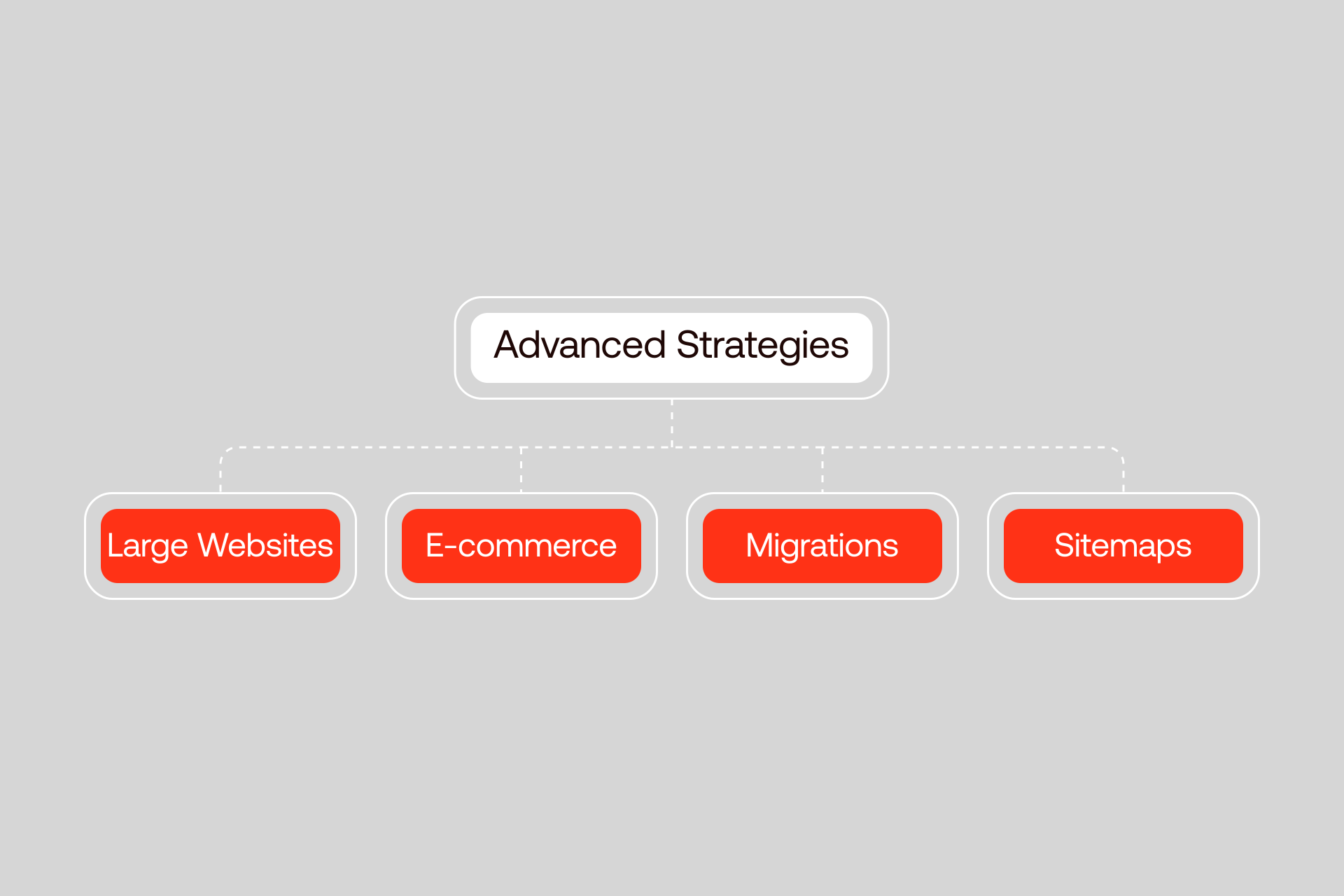
When your site grows, a simple sitemap isn’t always enough. Large projects, multiple languages, or lots of media require a few extra tricks to keep search engines happy.
Large or Multilingual Sites
Large or multilingual sites often use sitemap index files to split content into multiple smaller XML sitemaps. Webflow doesn’t do this automatically, you’d have to manage that manually if your site exceeds the sitemap size limit.
If you’re running multiple languages, hreflang tags become critical. They tell Google which version of a page to serve for each region or language. This prevents duplicate content issues and keeps users seeing the right page.
Managing crawl budget also matters. Search engines only spend so much time on your site per visit. Breaking large sites into multiple sitemaps helps ensure that important pages are crawled and indexed first.
Media and E-commerce Sitemaps
Sites with videos or images can benefit from dedicated media sitemaps. A video sitemap should include location, title, and description, while image sitemaps capture the image link, subject, and license info.
For Webflow eCommerce sites, product pages often live in CMS collections. Make sure each product page is included in your XML sitemap. This increases visibility for search engines and opens the door for rich snippets in search results, like star ratings or price info.
Sitemaps During Migrations
Changing platforms or reorganizing your site can be stressful for SEO. One tactic is to reference your old sitemap when setting up redirects. This helps search engines understand what changed and keeps your rankings stable.
Always monitor coverage after a migration, and update your new sitemap as pages are moved or renamed. Think of it as guiding search engines through a construction site, you want them to know which roads are open, which are closed, and which have moved.
When planning Webflow Migrations, referencing your old sitemap can help search engines understand the changes and keep your rankings stable.
Integrating Sitemaps Into Your SEO Strategy
Sitemaps do more than satisfy technical requirements, they provide a clear view of your site’s structure and help guide your SEO decisions, keeping everything organized and discoverable.
Tracking Performance with Google Search Console
Once your sitemap is live, Google Search Console is your best friend. Compare submitted vs. indexed pages, and check the Coverage report for anomalies.
Are some pages missing? Are there unexpected errors? These signals let you prioritize fixes and ensure high-value content gets crawled and indexed first. Essentially, your sitemap becomes a performance dashboard for site health.
How Sitemaps Improve SEO Workflows
Sitemaps also highlight crawl gaps, areas of the site search engines might be ignoring. You can use that insight to improve internal linking and make sure every important page is discoverable.
They also help align your SEO with your content cadence. When new content goes live, it hits the sitemap, signals freshness, and makes sure search engines notice updates quickly.
The Future of Webflow Sitemaps
Webflow’s sitemap automation is improving all the time, and new indexing tools like IndexNow and AI-driven crawlers are changing how content gets discovered.
That’s where a partner like Shadow Digital comes in, helping Webflow users not just generate sitemaps, but integrate them into a broader technical SEO strategy that scales with growth and evolving search engine behavior.
Book your discovery call today!