Webflow Stripe Integration: Complete Setup Guide (2026)


Let's Build Your Webflow Website!
Partner with experts who understand your vision. Let’s create a converting user experience and build your website for future growth.
Webflow Stripe Integration: The Complete Setup Guide (2026)
Stripe is one of the most powerful and widely trusted payment platforms in the world. When it’s paired with Webflow, it helps businesses launch fast, flexible, and scalable payment experiences, while avoiding the typical development overhead.
Webflow Stripe integration can be straightforward at a basic level, but things get more complex once you move beyond simple product sales. Subscriptions, custom checkout flows, webhooks, automation, and high-volume transactions introduce technical considerations that many teams overlook.
This guide explains how Webflow Stripe integration works in 2026, which integration methods are available, and how to choose the right approach for your business. Whether you’re launching a simple e-commerce store or building a subscription-based SaaS product, this walkthrough covers the fundamentals and advanced implementation scenarios where expert support becomes essential.
Featured Snippet
Webflow Stripe integration connects your Webflow site to Stripe’s payment processing platform. This allows you to accept payments, sell products, and manage transactions securely. To set things up, you need to enable Webflow e-commerce, create a Stripe account, connect Stripe through the settings, configure payment methods, and test in sandbox mode.
Subscriptions, webhooks, or custom checkout flows require additional configuration and custom development.
Abstract
Webflow Stripe integration allows businesses to accept payments, sell products, and manage subscriptions directly via their Webflow sites using Stripe’s secure payment infrastructure. From simple native e-commerce setups to advanced API-driven implementations, the integration supports a wide range of business models.
This guide provides a complete overview of Webflow Stripe integration in 2026. It covers native setup, subscriptions, webhooks, checkout optimization, security and PCI compliance, troubleshooting, and scaling for high-volume transactions. It is written for business owners, developers, and agencies seeking practical guidance.
As a Webflow Enterprise Partner with deep Stripe integration experience, Shadow Digital helps businesses implement the right payment systems that work reliably and scale confidently as requirements grow.
Quick-Reference: Webflow Stripe Integration Methods
Webflow provides support for many different integrations into Stripe, each built for different levels of complexity. Choosing the right method early on is critical because it affects checkout flexibility, subscription support, automation, and scalability.
Some businesses can rely on Webflow’s native e-commerce integration, while others might rely on hosted checkout pages, embedded payment elements, or fully customized implementations. The table below outlines the options open to you, and helps you to quickly assess your needs.
Webflow + Stripe Integration Methods Comparison
Quick Decision Guide
Are you selling physical or digital products?
- Use Native Webflow E-commerce
Need subscriptions or memberships?
- Use Stripe Checkout or third-party tools
Want full control over your checkout design?
- Use Stripe Elements
Building complex or multi-step payment flows?
- Use a custom Stripe API implementation
Setting Up Webflow Stripe Integration
Setting up Stripe on Webflow can be a simple and stress-free process, but it’s important to keep in mind that the decisions you make at this stage will directly impact how flexible, scalable, and maintainable your payment system ends up being. Before connecting accounts or configuring checkout, you need to understand what Webflow and Stripe require, and how this can change.
This section explores the native setup, customization options, and security considerations you need to get right before accepting your first payment.
Prerequisites for Integration
Before integrating Stripe with Webflow, there are a few baseline requirements on both platforms.
Webflow requires a paid site plan, which can be a CMS, Business, or E-commerce plan, depending on your needs. Native Webflow e-commerce requires the add-on, while custom Stripe implementations can work on both CMS and Business plans. SSL is also included automatically with Webflow hosting, making it essential for secure payments.
On the Stripe side, a Stripe account is necessary, which can be created for free. Stripe requires business verification before you can process live payments, identity checks, and business details. You need to connect a bank account for payouts, and ensure API keys are accessible.
Before you begin, plan out:
- What products or services you’re going to sell
- Which currencies you have to support
- Whether you require subscriptions
- How much control you need over your checkout experience
Key insight: You don’t need a Webflow E-commerce plan for every Stripe integration. Custom checkout flows, Stripe Checkout, and API-driven setups can run on CMS or Business plans.
Configuring Stripe in Webflow (Native E-commerce)
For simple product sales, Webflow’s native Stripe integration is the fastest way of going live.
To connect Stripe:
1. Open Webflow Project Settings
2. Find E-commerce
3. Click ‘Connect Stripe Account’
4. Authorize Webflow to access your Stripe account
5. Configure payments methods and currencies
Webflow supports credit and debit cards by default, as well as Apple Pay and Google Pay. Available payment methods can vary depending on region and account configuration.
It’s also important to consider:
- Default currency
- Tax setting
- Shipping rules
Before you launch you need to make sure you test. Enabling Stripe’s test mode, using test card numbers from Stripe documentation, is crucial for walking through the entire checkout flow. Confirm that order confirmations, emails, and payment statuses behave as they should.
Native Setup Steps Diagram:
Customization Options
Webflow can facilitate customization for native checkout experiences. You can design checkout pages within Webflow, style order confirmation screens, customize transactional email templates, and add custom fields to collect additional information.
Stripe also offers branding controls directly in its dashboard, allowing you to configure logos, receipts, colors, customer portal settings, and how payment methods are displayed.
More advanced customization requires development work. This includes embedding Stripe Elements for a fully custom checkout UI, building mini-step payment flows, implementing dynamic pricing, and supporting subscriptions and usage-based billing.
This is where teams use Webflow development services to ensure payment logic, UI, and automation get implemented correctly and securely.
Security and Compliance
One of Stripe’s greatest advantages is that it can handle PCI compliance for you. Card details never touch your Webflow site or servers, and all sensitive payment data is processed securely. This means Webflow + Stripe setups are PCI DSS compliant by default, with zero additional certification necessary.
Security features include automatic SSL/TLS encryption, Stripe Radar for fraud detection, 3D Secure authentication, and address verification (AVS). These features significantly reduce fraud risk for your organization.
Best practices still matter. Never log or store card numbers, make sure you always use HTTPS, enable fraud protection rules in Stripe, and monitor failed payments or suspicious activity. As your business grows, regular ongoing maintenance ensures payment systems remain secure.
Security Checklist:
CTA: See our integration and Webflow e-commerce work.
Advanced Features and Optimization
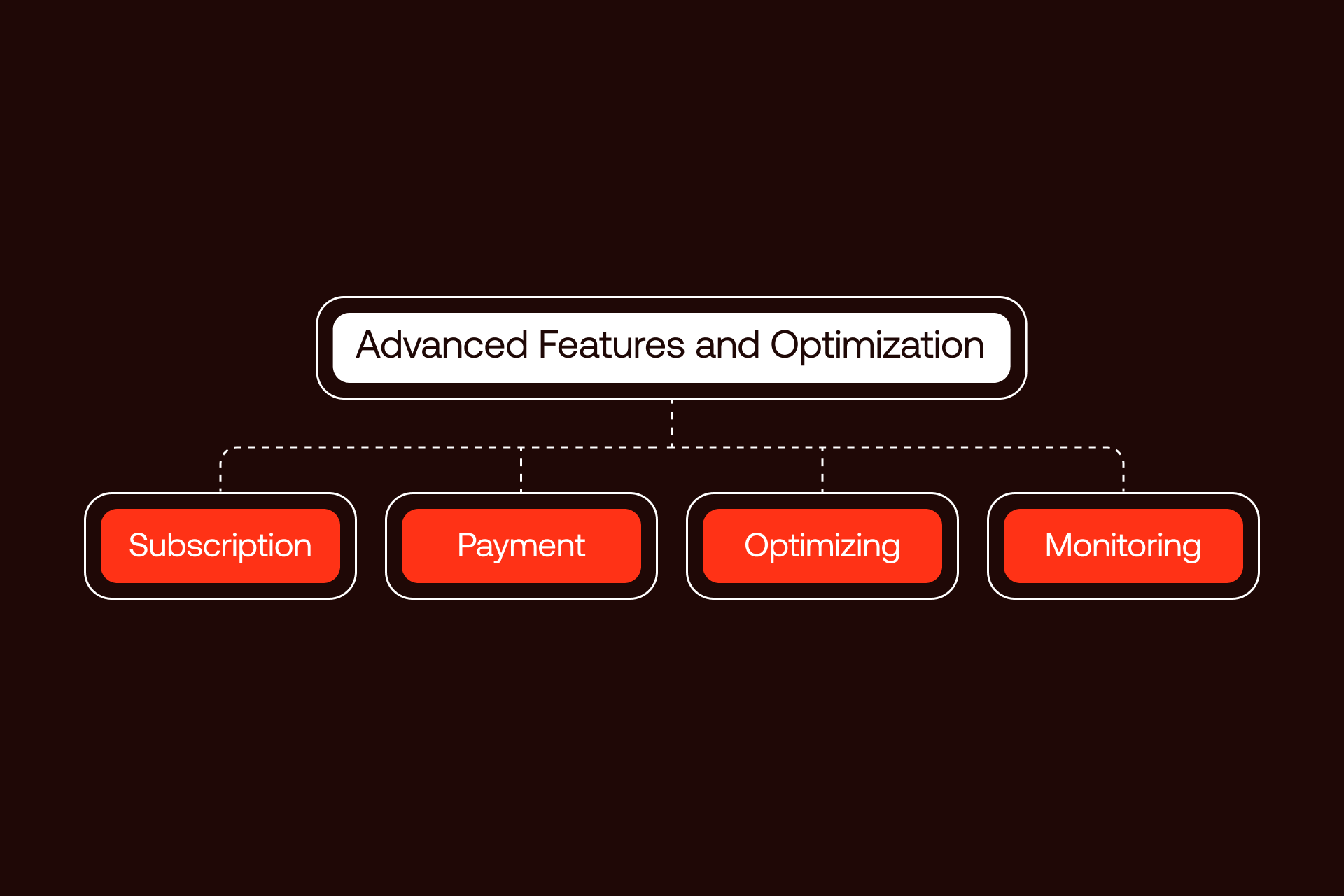
Once basic payments are working, the majority of Webflow + Stripe implementations will start to diverge. Subscriptions, automation, checkout optimization, and scaling all introduce new technical decisions that impact reliability, revenue, and long-term maintainability. This section explores the advanced features that matter the most as payment systems grow beyond simple transactions.
Subscription Management and Recurring Payments
Subscriptions are one of the most common reasons businesses outgrow Webflow’s native Stripe integration. Webflow supports limited recurring products and memberships, but it’s not designed to handle complex billing logic like proration, retries, or advanced customer self-service.
Stripe offers multiple ways to manage subscriptions, such as simple recurring payments like Stripe Payment Links, and SaaS-style billing, such as Stripe Billing - this provides full subscription management, including plans, trials, and pricing, as outlined in Stripe documentation.
A lot of teams are reliant on third-party tools like Memberstack to bridge the gap between Webflow and Stripe. These take care of authentication, gated content, and subscription logic without requiring custom development.
For serious subscriptions, native Webflow e-commerce often doesn’t measure up. Stripe Billing, hosted checkout, or third-party tools need careful configuration for upgrades, downgrades, trials, and handling failed payments in the right way. This is where our integration expertise is crucial.
Subscription Options Table
Payment Automation and Webhooks
Webhooks allow Stripe to send real-time events to external systems when something happens. These are essential for automation and syncing Stripe with Webflow-based workflows.
Common webhook events include:
- checkout.session.completed
- invoice.paid
- customer.subscription.deleted
- payment_intent.payment_failed
Webhooks are configured in the Stripe Dashboard and require an endpoint to receive and process events. Because Webflow doesn’t host backend endpoints, webhook handling typically relies on tools like Zapier and Make.
Webflow Logic supports simple automations, but complex workflows still require external handlers. Automation use cases include granting or revoking access, updating CMS records, syncing with CRMs, and sending custom notifications.
Reliable webhook implementations require monitoring, retries, and testing using Stripe’s CLI and event logs. As systems scale, automation becomes critical to preventing manual reconciliation and operational errors.
Optimizing the Checkout Flow
Checkout optimization directly impacts conversion rates, and Stripe Checkout outperforms custom-built forms because it’s optimized for speed, mobile responsiveness, and trust signals. Key optimization principles include minimizing friction, multiple payment methods, and clear pricing communication.
Stripe Checkout supports Apple Pay and Google Pay, along with other saved payment methods. Reducing cart abandonment is much simpler when you enable guest checkout and ensure checkout flows work seamlessly on mobile devices. Furthermore, abandoned cart emails can also help improve recovery rates.
Testing and iteration are essential elements of optimizing your checkout process, and things like identifying drop-off points, and A/B testing, can make checkout experiences better. Teams that want to prioritize design control should use Stripe Elements for flexibility, though this does come at the cost of increased complexity.
Monitoring and Scaling
Stripe has a dashboard that provides visibility into things like revenue, payment success rates, refunds, and subscription metrics. As volume increases, teams should actively monitor failed payments, chargeback rates, and customer lifetime value.
Stripe handles scaling automatically, with high availability and built-in redundancy. API rate limits and webhook delivery guarantees ensure reliability even at scale. For high-volume businesses, performance optimization can move from infrastructure concerns to process design and monitoring.
Scaling payment systems often introduces additional requirements, such as regional payment methods, multi-currency handling, and compliance factors. These scenarios benefit from structured monitoring and ongoing Webflow maintenance to ensure systems remain stable as transaction volume grows.
Integration Methods and API Usage
Webflow and Stripe support a wide integration spectrum, from native checkout to fully custom API-driven systems. Choosing the right method is essential to avoiding unnecessary complexity, which is why so many teams rely on professional Webflow development services.
Integration Methods Comparison Table
Third-party tools like Memberstack, Outseta, and Make extend Stripe’s functionality without requiring full custom builds. These tools are often sufficient for memberships, CMS syncing, and workflow automation.
Custom API implementations are reserved for complex billing logic, marketplace, and high-volume transaction systems. These setups are essential for developing expertise and long-term support, as well as providing maximum flexibility.
Most businesses don’t need custom APIs, but the deep Webflow experience that Stripe offers is core for developing systems that scale.
CTA: Need subscription or webhook setup? We can help. Contact our team today.
Troubleshooting Common Issues
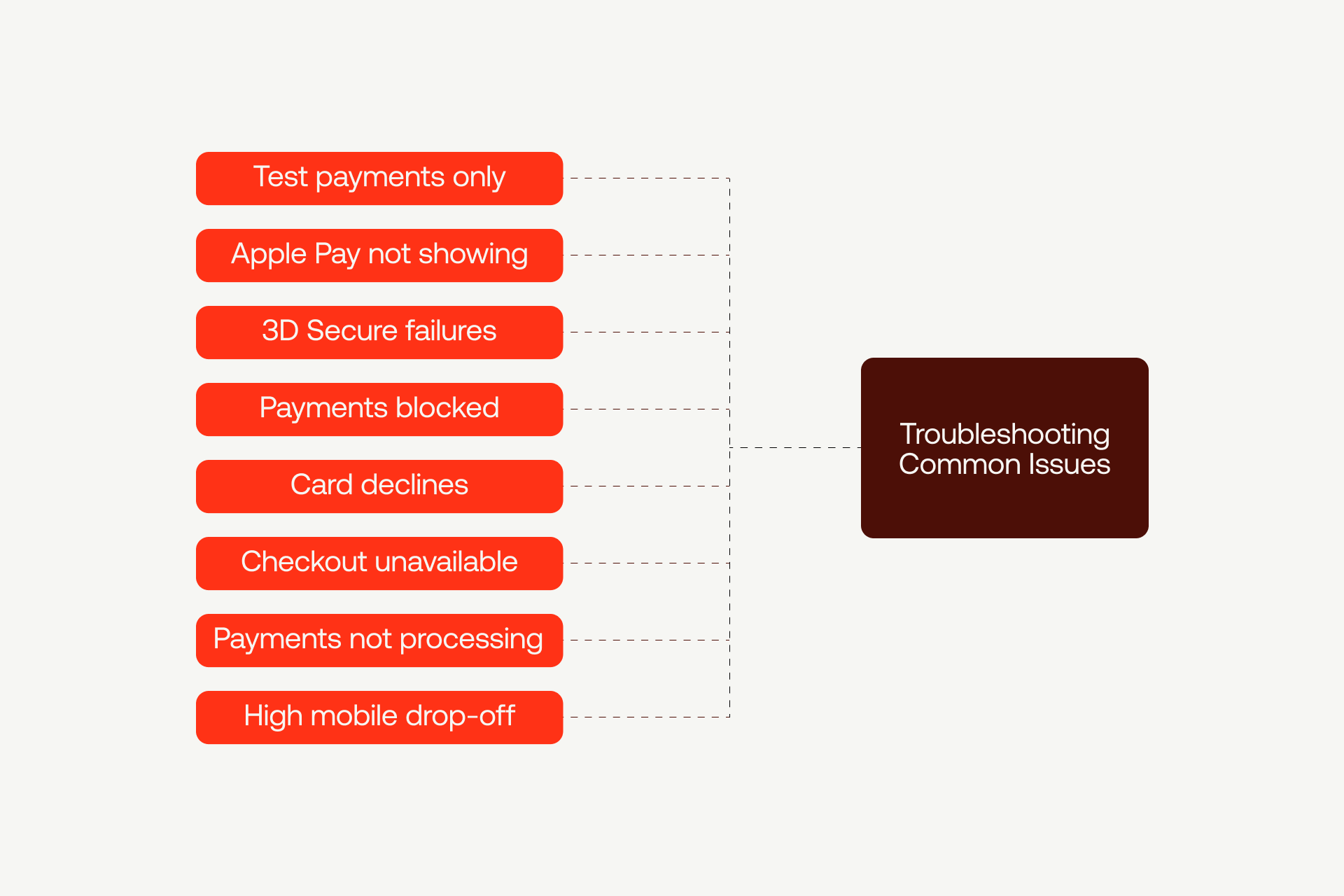
Even the best Webflow Stripe integrations can encounter problems during the setup process, and when shifting to live payments. Most of these issues happen when it comes to mismatched configuration, gaps in verification, and restricted payment methods. So we’re going to explore some of these biggest issues, and how you can overcome them.
Connection and Configuration Issues
Connection issues typically appear when there’s a lack of alignment between Stripe and Webflow. Something like an unverified account on Stripe can cause problems, as it is necessary to verify as a business before you can allow live payments.
One of the other issues that can occur is using the wrong API environment. Test keys and live keys are generally completely separate, and trying to process live payments while Stripe is still in test mode will cause failures. Similarly, Webflow E-commerce needs to be enabled on the correct plan.
Regional and currency mismatches can also prevent payments from completing. Stripe’s availability varies by country, and certain payment methods may not be supported. Apple Pay issues can be caused by missing Stripe’s domain verification.
The majority of configuration issues can be fixed by verifying your Stripe account, and enabling the appropriate Webflow plan.
Checkout and Payment Failures
Payment failures can happen after checkout has been connected, due to transaction-level issues. Common reasons for this include things like card declines, failed 3D Secure authentication, insufficient funds, or Stripe Radar blocking payments.
Review the Stripe Dashboard to get to the bottom of these error codes and ensure that legitimate transactions aren’t being blocked. This is essential for high-value or international transactions.
Improving payment success rates means implementing a few steps in order to make this process work better. Make sure you enable automatic retries for failed payments, make error messages clear and user-friendly, and offer multiple payment options, such as Apple Pay or Google Pay.
Troubleshooting Checklist
When to Get Expert Help
Understanding when you need to seek help with Webflow Stripe integration is important for implementing this as a business. These are some of the leading scenarios in which you should seek expert help for your Webflow Stripe integration.
DIY vs. Professional Implementation
Not every Webflow Stripe integration requires professional development, but the complexity increases quickly as business requirements grow. Simple product sales with standard checkout flows are well suited to DIY implementation using Webflow’s native Stripe integration or hosted checkout solutions.
However, once subscriptions, automation, custom checkout experiences, or higher transaction volumes are introduced. Failed payments and poor conversion performance are common symptoms of under-engineered payment systems.
Shadow Digital’s Approach
Shadow Digital works with companies that need their payment infrastructure to scale reliability rather than just functioning at launch. As a Webflow Enterprise Partner, Shadow Digital designs Stripe integrations that support complex billing logic, automation, and long-term growth.
We’ve implemented payment systems across a wide range of use cases, including e-commerce storefronts and subscription-based SaaS platforms. You can see our Webflow e-commerce work to see how we provide these implementations.
We also support ongoing maintenance to help ensure payment flows remain compliant as Stripe, Webflow, and business requirements evolve.
CTA: If your Stripe integration goes beyond basic setup, contact our team to discuss a solution.
Conclusion
A Webflow and Stripe combination is one of the most powerful payment foundations your business can use for selling products and managing subscriptions online. For a lot of companies, this integration is enough to be able to launch quickly and effectively, and start generating revenue. However, Stripe’s broader ecosystem unlocks subscriptions, automation, and optimized checkout experiences.
The key takeaway here is that payment complexity grows faster than expected. Things like subscriptions, webhooks, checkout flows, and high-volume transactions introduce technical considerations that directly impact reliability and conversion rates. Stripe handles PCI compliance and infrastructure at scale, in order to determine whether your payment system works well.
Whether you’re launching your first product or scaling a mature payment system, this is a combination that supports your business goals. For integrations that move beyond the basics, Shadow Digital brings the technical expertise to guide you to the right result, and develop payment systems that enhance your business.
FAQs
Setup
- How do I connect Stripe to Webflow?
To connect Stripe to Webflow you’ll require a paid Webflow plan and verified Stripe account. Head to Webflow, go to Project Settings, then E-commerce, and then Connect Stripe Account.
- Do I need a Webflow E-commerce plan to use Stripe?
No. Webflow E-commerce is only necessary if you’re looking to use Webflow’s native e-commerce features.
- Can I use Stripe with Webflow in my country?
Stripe is available in many countries worldwide, but availability will depend on both your business location and the currencies you want to support.
Features
- Can I set up subscriptions with Webflow and Stripe?
Yes, but it depends a lot on how Stripe is integrated, and Webflow’s native e-commerce is not really designed for complex subscription logic.
- Does Webflow support Apple Pay and Google Pay?
Yes. When Stripe and Webflow connect, you can enable Apple Pay and Google Pay automatically if they’re supported in your region.
- How do I handle multiple currencies?
Need to handle multiple currencies? No problem, Stripe supports multi-currency payments, and you can use Stripe Checkout for pricing logic, exchange rates, and localization.
Technical
- What are Stripe webhooks and do I need them?
Stripe webhooks are real-time notifications that are sent whenever payment events occur, whether its successful checkouts or failed payments, or even canceled subscriptions.
- Is Webflow Stripe integration PCI compliant?
Yes. Webflow handles PCI DSS compliance by processing all sensitive card data on its own infrastructure, and card details never touch your Webflow site, removing compliance issues.
- Can I customize the Webflow checkout page?
Yes, but it depends on the integration method. Stripe Checkout offers minimal UI but strong conversion optimizations. Webflow’s native checkout allows limited design control in predefined layouts.
Troubleshooting
- Why are my payments failing?
Payment failures can happen for several reasons, such as card declines, insufficient funds, and failed 3D Secure authentication, etc.
- How do I test Stripe before going live?
Stripe has a dedicated test mode allowing you to simulate payments using test card numbers. Enable test mode in Stripe and complete test transactions on your Webflow site.
- What do I do if my Stripe account is restricted?
Account restrictions might happen for a number of reasons, including incomplete verification, chargebacks, and high-risk activity, and addressing the issue is key to ensuring you overcome a restriction.